MCP Server Integration
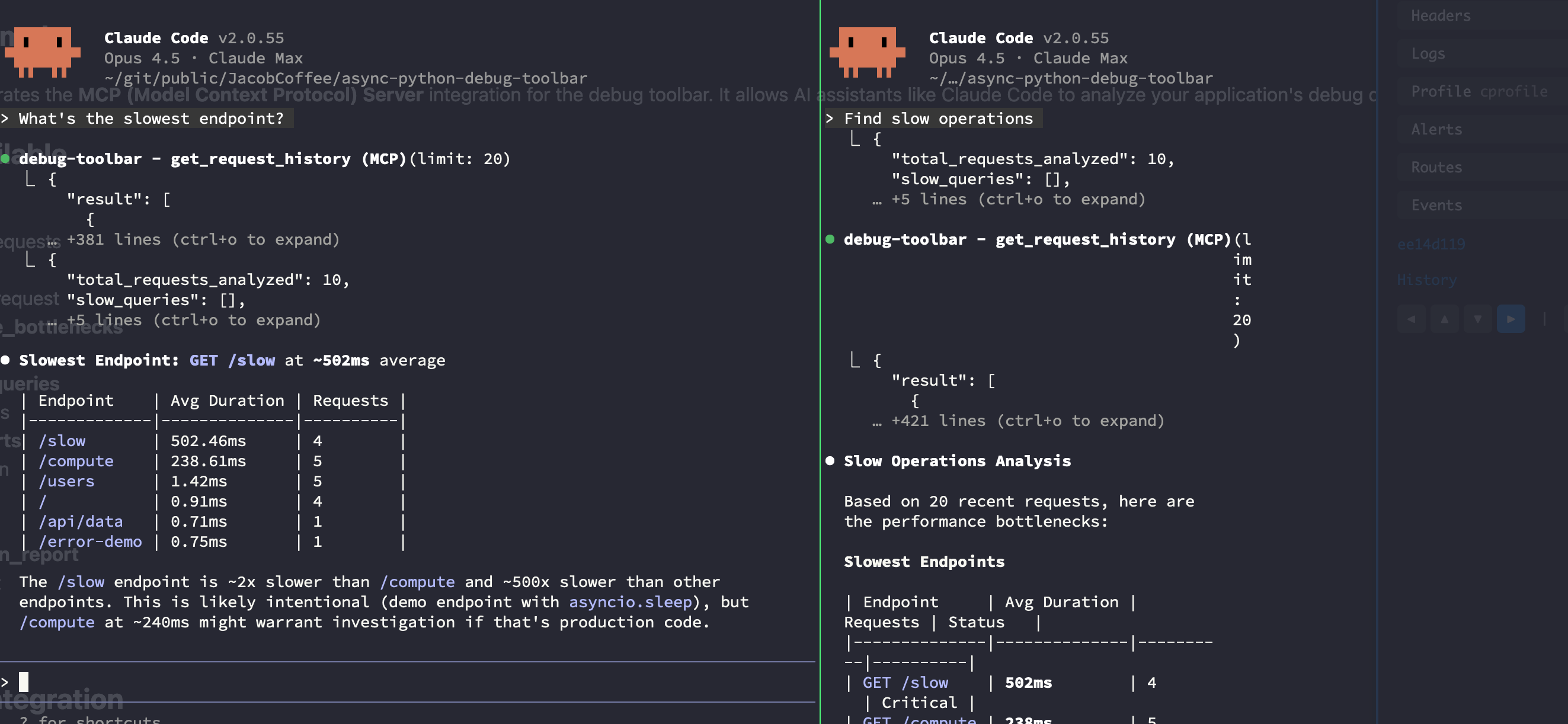
The debug toolbar includes an MCP (Model Context Protocol) server that allows AI assistants like Claude Code to analyze your application’s debug data programmatically.
Installation
Install with MCP support:
uv add debug-toolbar[mcp]
# or
pip install debug-toolbar[mcp]
Quick Start
2. Configure Claude Code
Add to your ~/.claude/settings.json (global) or .claude/settings.json (project):
{
  "mcpServers": {
    "debug-toolbar": {
      "command": "uv",
      "args": ["run", "python", "-m", "debug_toolbar.mcp", "--storage-file", ".debug_toolbar_storage.json"],
      "cwd": "/path/to/your/project"
    }
  }
}
Important: The cwd must point to where your web app runs (where the storage file is created).
3. Restart Claude Code
After updating settings, restart Claude Code to load the MCP server.
4. Generate Request Data
Start your web app and make some requests. The storage file will be created and populated.
5. Ask Claude Code to Analyze
Once you have requests flowing through your app, ask Claude Code questions like:
“What requests have been made to my application?”
“Are there any slow endpoints?”
“Check for security issues in my app”
“Generate a performance optimization report”
“Are there any N+1 query patterns?”
Available MCP Tools
Request Analysis
Tool |
Description |
Example Prompt |
|---|---|---|
|
List recent HTTP requests |
“What requests have been made?” |
|
Get detailed info for a specific request |
“Show me details for request abc123” |
|
Get data from a specific panel |
“What does the Timer panel show?” |
Performance Analysis
Tool |
Description |
Example Prompt |
|---|---|---|
|
Find slow operations |
“Are there any slow endpoints?” |
|
Compare timing between requests |
“Compare the /api and /users endpoints” |
|
Full performance report |
“Generate a performance report” |
Database Analysis
Tool |
Description |
Example Prompt |
|---|---|---|
|
Find N+1 query patterns |
“Are there any N+1 queries?” |
Security Analysis
Tool |
Description |
Example Prompt |
|---|---|---|
|
Check for security issues |
“Check for security problems” |
Example Prompts
Here are effective prompts to use with Claude Code:
General Analysis
"Analyze my application's debug toolbar data"
"What's happening in my app?"
"Show me recent requests and any issues"
Performance
"What's the slowest endpoint in my application?"
"Find performance bottlenecks"
"Which requests are taking longer than 200ms?"
"Generate an optimization report for my app"
Security
"Are there any security issues in my responses?"
"Check for missing security headers"
"Analyze security alerts from the debug toolbar"
Database
"Are there N+1 query problems?"
"How many database queries per request?"
"Find inefficient database access patterns"
Comparison
"Compare the performance of /api/users vs /api/posts"
"What changed between these two requests?"
MCP Resources
The MCP server also exposes resources for direct data access:
Resource |
URI |
Description |
|---|---|---|
Request List |
|
All tracked requests |
Request Details |
|
Single request details |
Panel Data |
|
Specific panel data |
Toolbar Config |
|
Current configuration |
Available Panels |
|
List of enabled panels |
Programmatic Usage
You can also use the MCP server programmatically:
from debug_toolbar import DebugToolbar, DebugToolbarConfig
from debug_toolbar.mcp import create_mcp_server, is_available

if is_available():
    config = DebugToolbarConfig(enabled=True)
    toolbar = DebugToolbar(config)

    mcp = create_mcp_server(
        storage=toolbar.storage,
        toolbar=toolbar,
        redact_sensitive=True,  # Redact passwords, tokens, etc.
        server_name="my-app-debug",
    )

    # Run with stdio transport (for Claude Code)
    mcp.run(transport="stdio")

    # Or SSE transport (for web clients)
    # mcp.run(transport="sse")
Security Considerations
Sensitive Data Redaction
By default, the MCP server redacts sensitive data like:
Passwords and secrets in headers
Authorization tokens
API keys
Session cookies
Enable/disable with:
mcp = create_mcp_server(
    storage=toolbar.storage,
    toolbar=toolbar,
    redact_sensitive=True,  # Default: True
)
Production Usage
The MCP server is intended for development use only. Do not expose it in production environments as it reveals internal application details.
Troubleshooting
MCP Server Not Loading
Check that
mcppackage is installed:pip show mcpVerify settings.json syntax is valid JSON
Restart Claude Code after config changes
Check Claude Code logs for MCP connection errors
No Request Data
Ensure your application has the debug toolbar enabled
Make some requests to your application first
Check that
max_request_historyis > 0 in config
Tools Not Working
Verify the MCP server is running: check Claude Code’s MCP status
Try a simple prompt first: “What requests have been made?”
Check that your application is generating debug data
Running the Example
Try the included MCP example:
# Terminal 1: Run the web app
make example-mcp

# Terminal 2: The MCP server runs via Claude Code settings

# Then:
# 1. Visit http://localhost:8004 and click around
# 2. Ask Claude Code: "Analyze my debug toolbar data"